Dedicated browser converter

Free AVIF to WebP
Converter

Convert AVIF images to broadly supported WebP files in your browser. Control WebP quality, resize large images, process batches, and download the results privately.

Convert AVIF now

Drop AVIF images here

AVIF files · Up to 30 files · 50 MB each

Dedicated conversion

AVIF to WebP conversion with format-specific settings.

Private by design

Processing stays on your device.

Batch ZIP download

Convert up to 30 images together.

Format-specific converters

Choose a format-specific image tool

Every converter has its own dedicated page, settings, guide, and frequently asked questions.

Step-by-step conversion guide

How to convert AVIF to WebP

Use this six-step workflow to convert AVIF files to WebP directly in your browser.

1

Choose the AVIF file you want to convert

Select the AVIF file you want to convert. AVIF can produce very small image files, but it is not always the most convenient format for every website, workflow, editor, or platform. Converting it to WebP can be useful when you need a format with broader compatibility while still keeping image sizes relatively efficient.
Step 1
2

Upload one AVIF file or a complete batch

Drop the AVIF image into the upload area or choose it manually from your device. You can add one image for a quick conversion or prepare several AVIF files together when you need to convert a complete group of assets.

Step 2
3

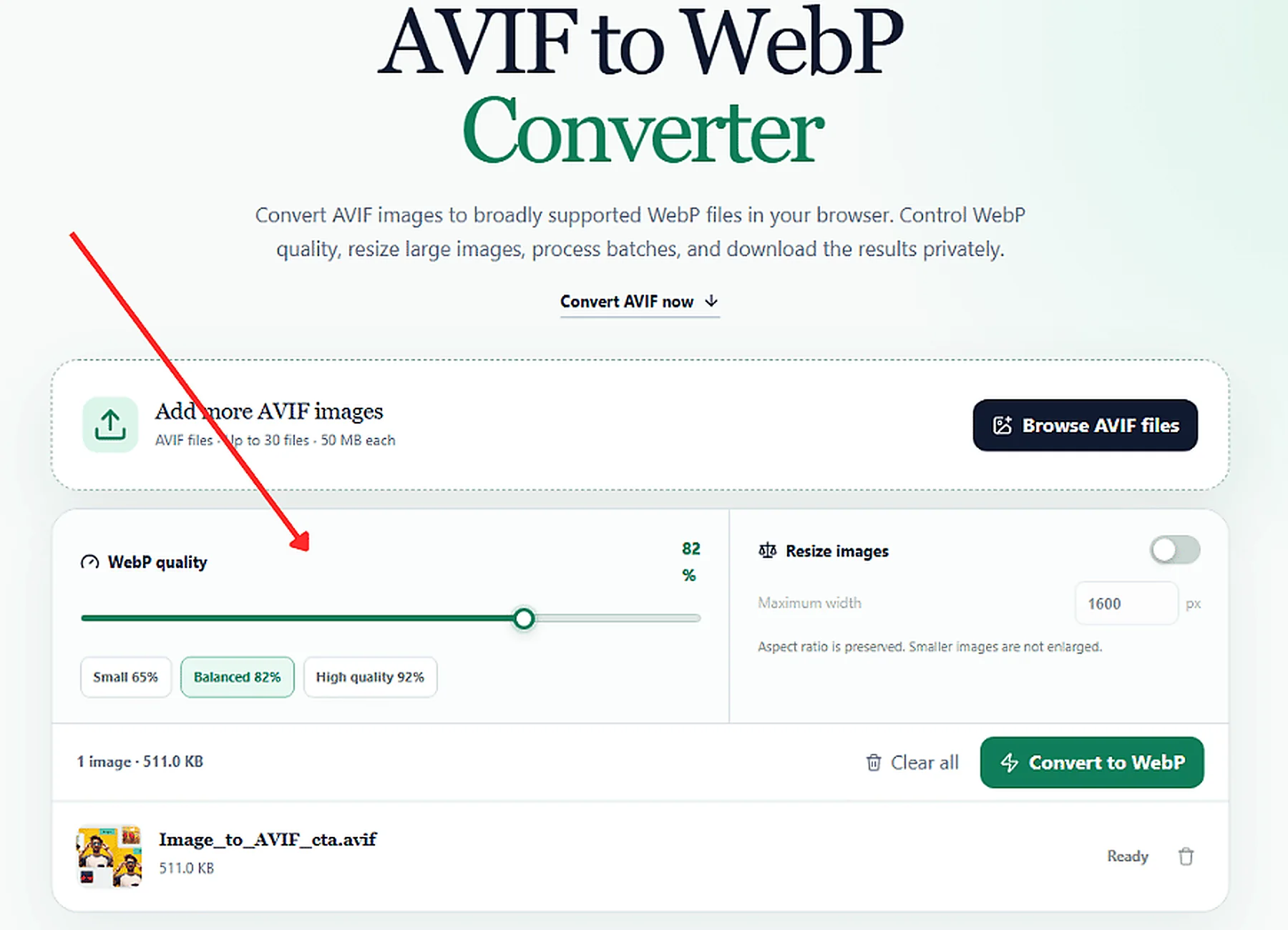
Choose an appropriate WebP quality level

Set the WebP quality before processing the image. Higher quality is useful for photographs, illustrations, gradients, detailed product images, and graphics where small visual changes are easy to notice. For less prominent website images, a lower setting may be enough and can help reduce the final file size further.

Step 3
4

Resize images that are larger than necessary

Check the pixel dimensions of the AVIF before converting it. An image can already be efficiently compressed but still be unnecessarily large in width and height. If the original dimensions are bigger than your website needs, enable resizing and set an appropriate maximum width while preserving the original proportions.

Step 4
5

Convert and review the WebP result

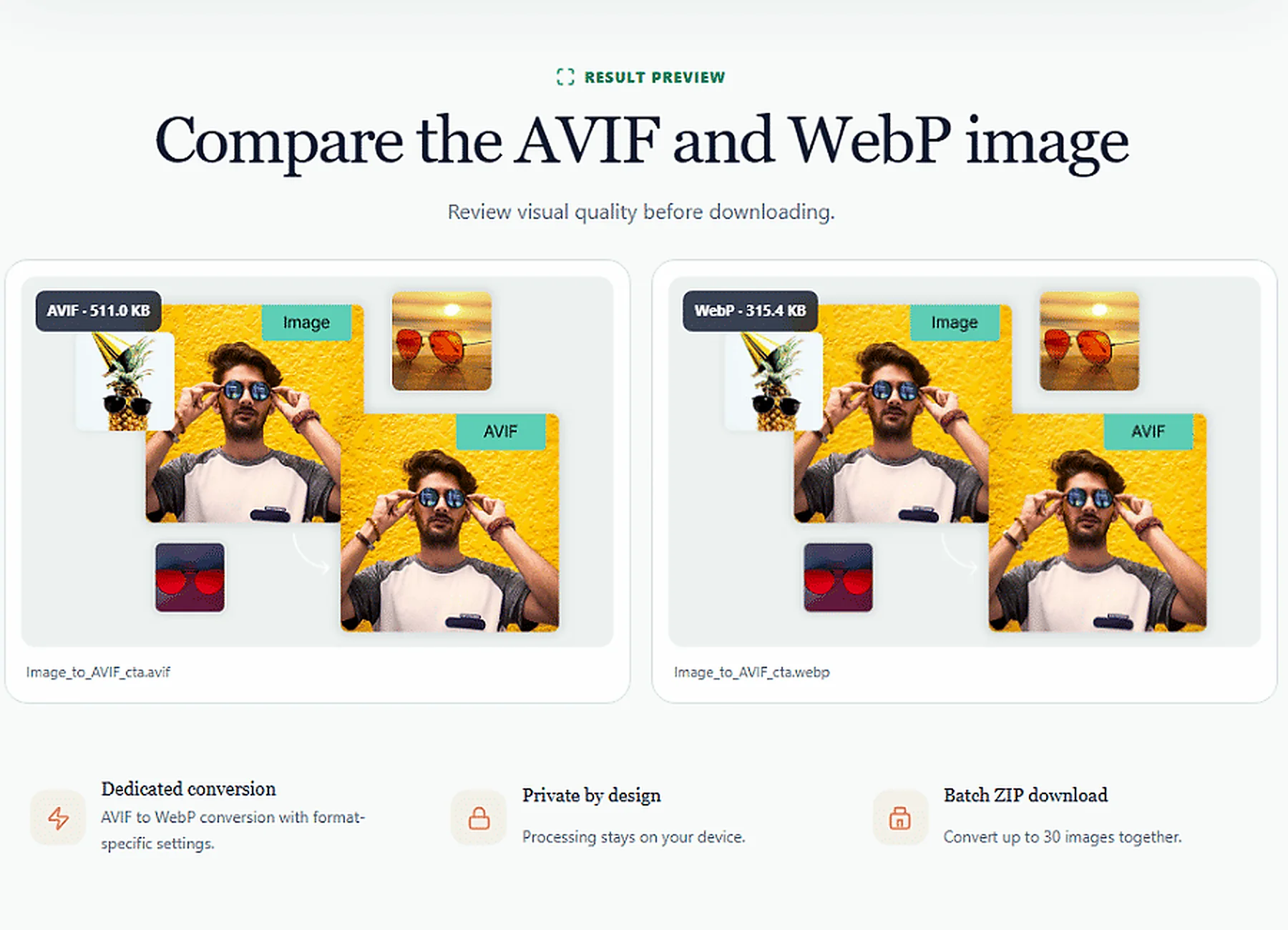
Begin the AVIF to WebP conversion once your settings are ready. When processing is complete, look at the finished image rather than focusing only on the file-size number. Check important areas such as fine textures, edges, color transitions, text, and shadows to make sure the chosen quality level produces a result you are comfortable using.

Step 5
6

Download the WebP image or ZIP batch

Save the finished WebP file to your device or download the converted batch as a ZIP if you processed several images. You can then use the WebP files in websites, content management systems, ecommerce pages, blogs, and other projects where WebP fits more easily into your existing image workflow.

Step 6
AVIF

Source format

The dedicated tool accepts AVIF source images and applies settings appropriate for WebP output.

WebP

Output format

Review the WebP output before publishing or replacing the original.

Recommended AVIF to WebP workflow

Use the best source file, resize oversized images, choose sensible output settings, compare the result, and keep the version that best fits your real use case.

Practical format guide

When AVIF to WebP conversion is useful

AVIF can achieve excellent compression, but WebP may be easier to use in older applications, upload systems, and image workflows. Converting can improve compatibility without requiring a server upload.

Browser decoding is required

The browser must be able to decode the source AVIF image. Current browsers generally support AVIF, but very old browser versions may not.

Choose WebP quality visually

Start around 82% quality and compare the result. Use a higher value for small text, illustrations, or detailed photography.

Resize if the source is oversized

A realistic maximum width can reduce output size while preserving the image aspect ratio.

Questions answered

AVIF to WebP Converter FAQs

Clear answers about compatibility, quality, privacy, resizing, and batch conversion.

Can every browser decode AVIF?

Modern browsers generally can, but older versions may not. If the source cannot be decoded, update the browser and try again.

Does AVIF transparency convert to WebP?

When the browser decodes AVIF transparency correctly, WebP can preserve alpha transparency.

Can I resize AVIF while converting?

Yes. Enable Resize images and choose a maximum width.

Can I batch convert AVIF files?

Yes. Up to 30 compatible AVIF images can be processed in one batch.

Are AVIF files uploaded?

No. Processing takes place in your browser.

Will WebP always be smaller than AVIF?

No. AVIF can be extremely efficient. Convert mainly for compatibility and compare the resulting file sizes.

Private browser conversion

Convert AVIF to WebP now.

No signup, no server upload, and no watermark.

Open the converter